Getting started
A quick tour of Nano Ad Studio
Nano Ad Studio turns a buyer’s own words into direct-response photo, video, and animation ads, the kind built to earn a click and a sale. Here is the whole flow, step by step, with a look at each screen so you know exactly where you are going.
The one idea to remember
People buy a reason, not a product. The reason a specific buyer says yes is called the angle.
Every step below points back to this. Find a real reason, state it plainly in the ad, and back it with proof a buyer can check.
How the studio works
The main work areas take you from a blank idea to one finished ad. Run them in order this first time, then repeat whichever one earns results.
Add your brand and product
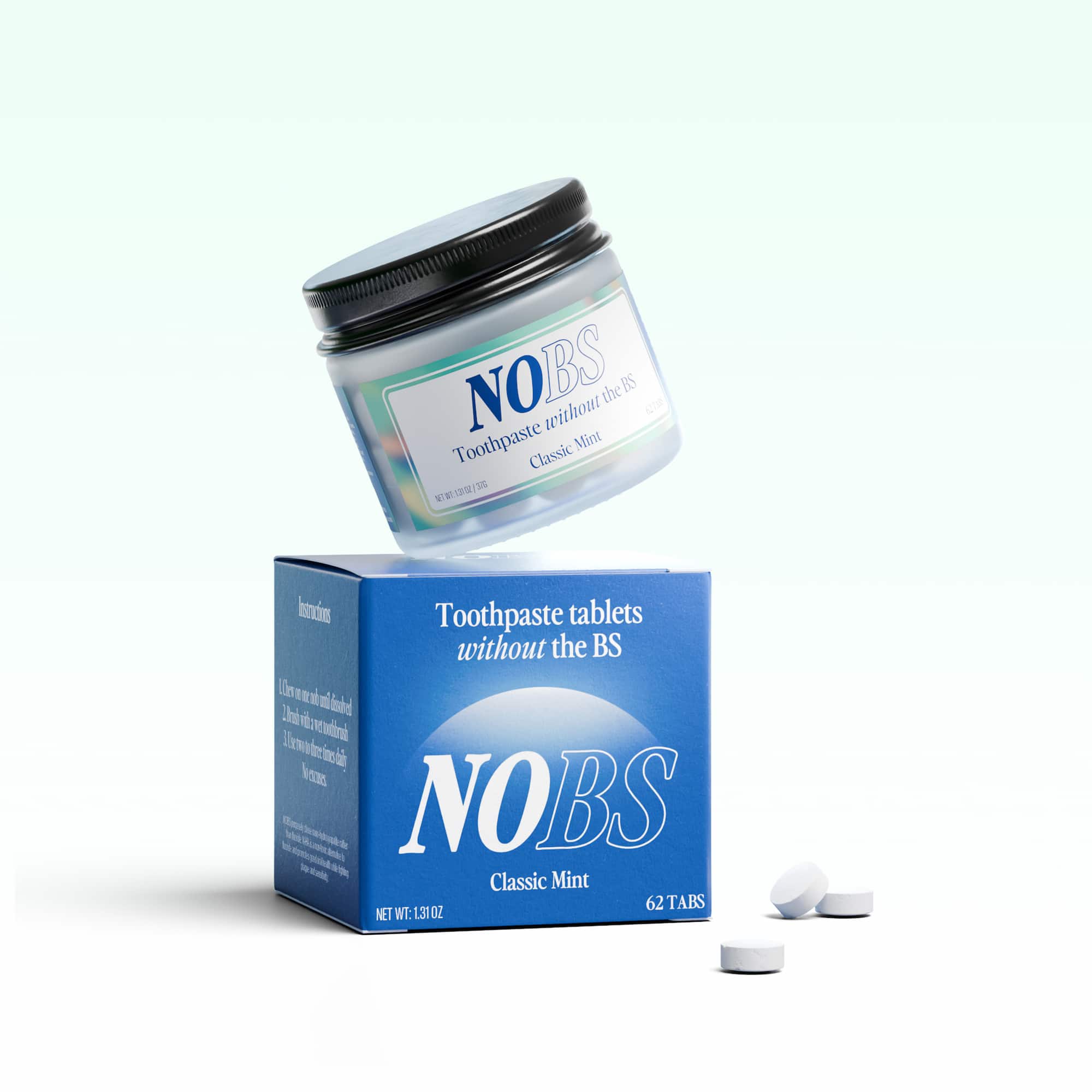
Before you open a studio, add the brand and product under Settings > Brands & Products. The selected product in the sidebar supplies the core product context for every ad, including product name, facts, price, and visual references.
New brandBrands & Products
Product records feed the studios automatically.
 $12.00
NOBS Toothpaste Tablets
Flavor, benefit, packaging, and offer context
Find a real reason to buy
Inspiration reads how real buyers talk and ranks the pains, objections, and trigger moments most likely to become direct-response ads. Inspect the proof, assess the pain, compile three focused concepts, then open the selected concept in Photo, Video, or Animation.
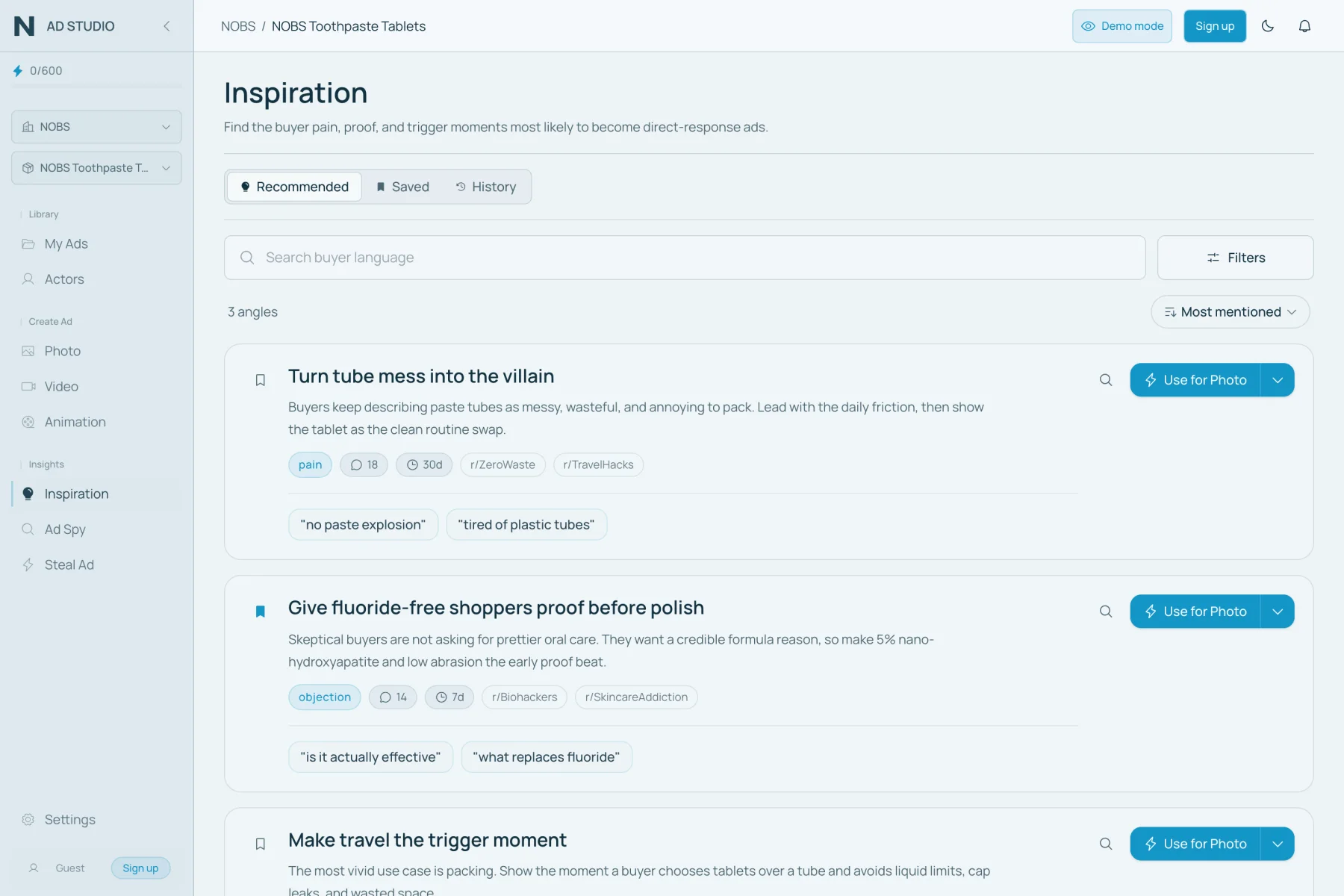
Each card is one reason a buyer says yes. The chips show the source, how often it comes up, and how recent it is. Borrow what already works
Ad Spy surfaces competitor ads with public reach and response signals. Click a card to inspect the creative breakdown, then use Steal Ad when you want Nano to adapt that winner to your product.
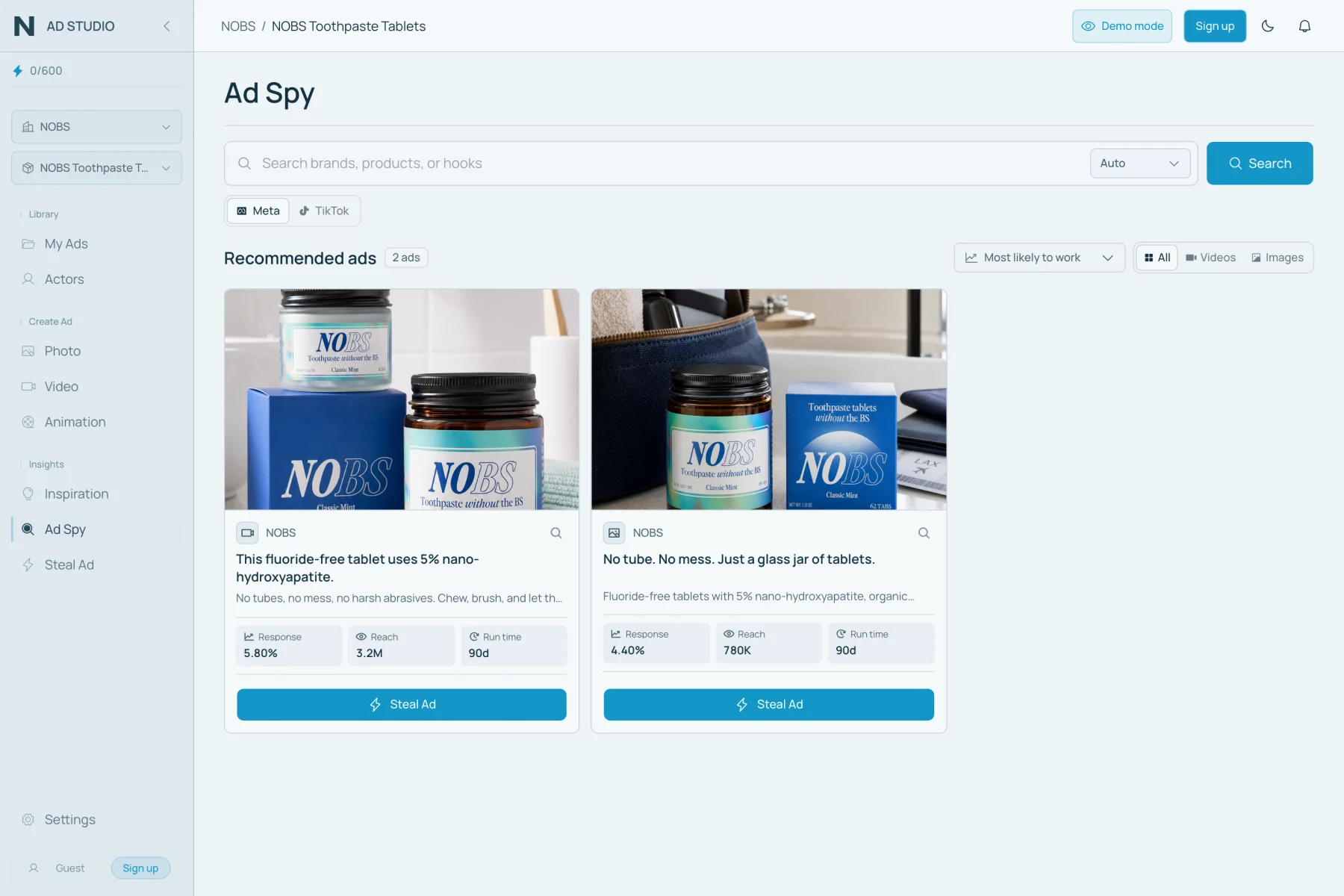
Use the metrics to decide what to study, then open the breakdown to see the hook, buyer problem, and offer. Choose the studio for the format
Use the sidebar to open Photo, Video, or Animation. Each studio has its own composer: Photo for static tests, Video for UGC or product demos, and Animation for stylized motion.
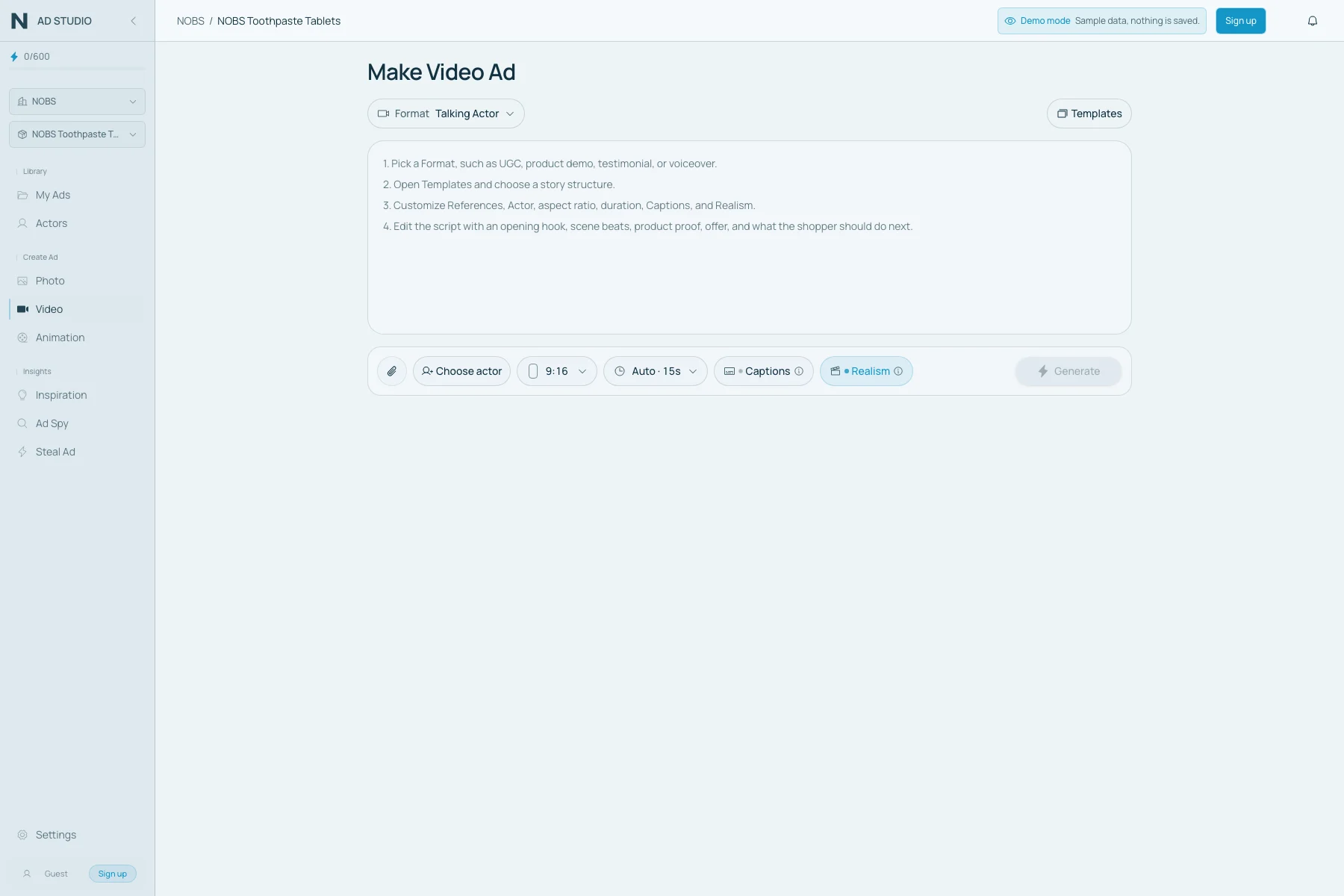
The sidebar is the creation entry point: choose Photo, Video, or Animation, then build the ad inside that dedicated studio. Make an ad inside a studio
Before My Ads has anything to review, generate the ad inside the studio. Work through these controls from top to bottom, then generate when the button becomes available.
Choose a format
Photo, Video, or Animation.
Animation studioPick Format or Visual Style
This is the same kind of control with different names by studio. Photo Format chooses the static ad angle, Video Format chooses the structure, such as Talking Actor, Actor Story, Voiceover Demo, or Product Cinematic. Animation Visual Style chooses the look, such as Pixar Style 3D, Claymation, Anime Commercial, or 2D Explainer.
Visual StyleAnime Commercial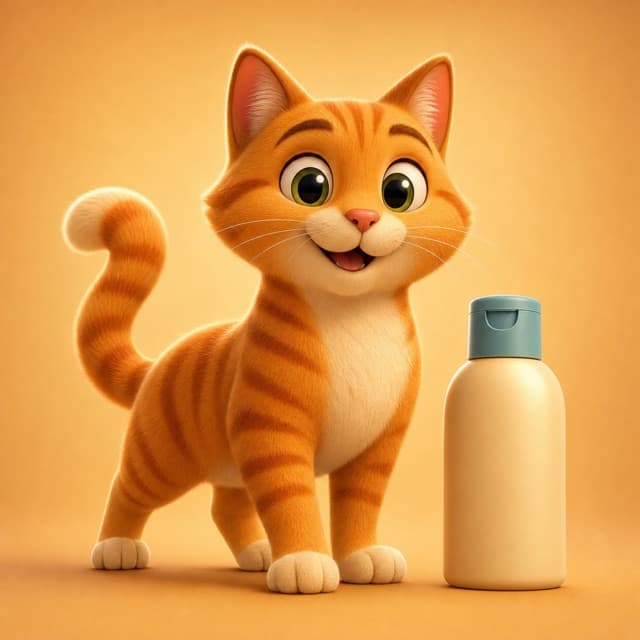 Pixar Style 3D
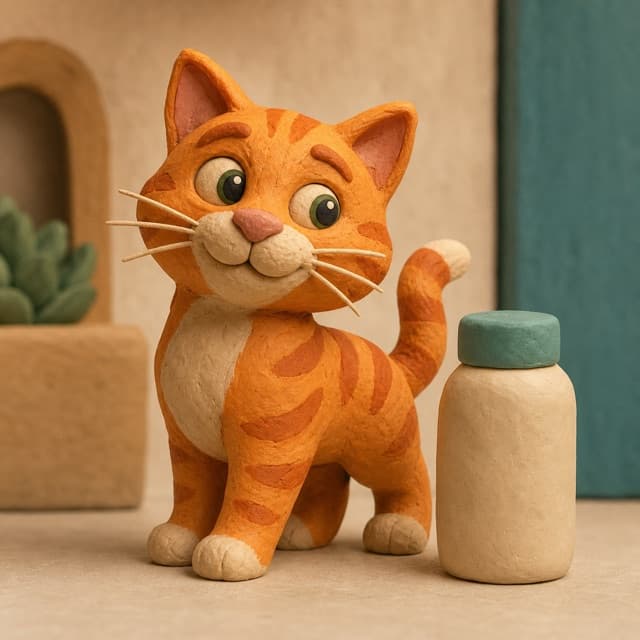 Claymation
 Anime Commercial
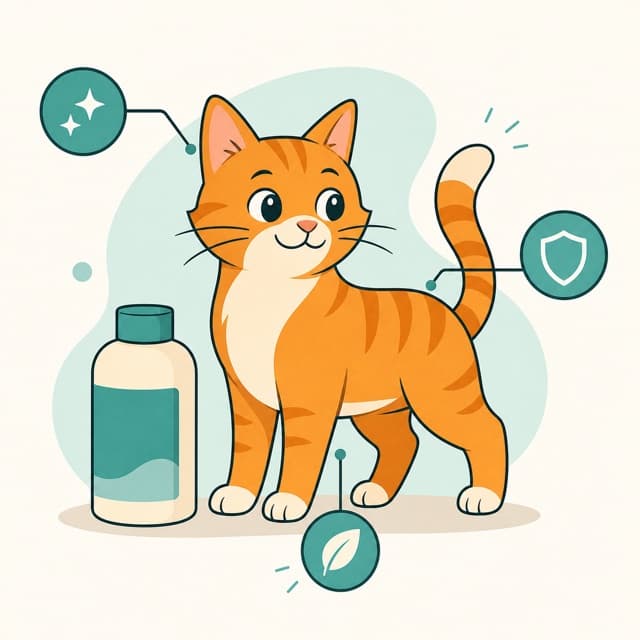 2D Explainer
Open Templates
Templates gives you a starting angle or story structure. Pick one to fill the prompt, script, or animation brief, then edit it before generating. Pin templates you use often so they stay near the top.
TemplatesTemplates
Problem solutionLead with the buyer pain, then show the product fix.DIRECT RESPONSEProduct proofUse a concrete result or ingredient detail as the reason to believe.PROOF-LEDOffer revealBuild to the bundle, price, or first-purchase incentive.PROMOTIONEdit the prompt, script, or brief
The big text box is the main instruction. For Photo, describe the shot, product, setting, headline, mood, and anything to avoid. For Video, write the hook, scene beats, product proof, offer, and CTA. For Animation, write the scene-by-scene action, product moments, on-screen text, voiceover, and mood.
Animation briefScene beats1. Open on a tired customer at the desk.
2. Product appears with a clear benefit callout.
3. Show the before and after in one motion.
4. End with offer and CTA.
Choose generation references
Open References to add saved product views, ready actors, brand marks, or uploaded scene and art-direction images. Each item keeps its own role so the compiler does not confuse one source with another.
Product context is already selected
NOBS Toothpaste Tablets
 Reference 1
 Reference 2
 Reference 3
Set ratio and length
Aspect ratio controls where the ad will run: 9:16 for Reels, TikTok, Shorts, and Stories; 16:9 for widescreen placements; Photo also supports 1:1 and 4:5 feed crops. Duration appears for Video and Animation. Auto follows the script, while a manual duration fixes the target length.
9:16Auto · 15sChoose the final treatment
Natural Finish on Video adds subtle grain and image texture to reduce unnaturally clean AI output. Music Video on Animation scores the whole ad to a custom generated song.
Natural FinishMusic VideoChoose ad count for Photo
Photo has an Ad count control for one or more static variants. Use it to choose how many static outputs should be queued before pressing Generate.
4:53 ads1 ad2 ads3 adsPress Generate
Generate turns on when the required inputs are ready. If it is disabled, hover or focus it to see what is missing, such as a prompt, product, plan, or enough credits.
9:16Auto · 15sGenerate
Review and hand off
My Ads collects every photo, video, and animation you generate. Keep the version that states the reason clearly, download it, and upload it to your own ad account.
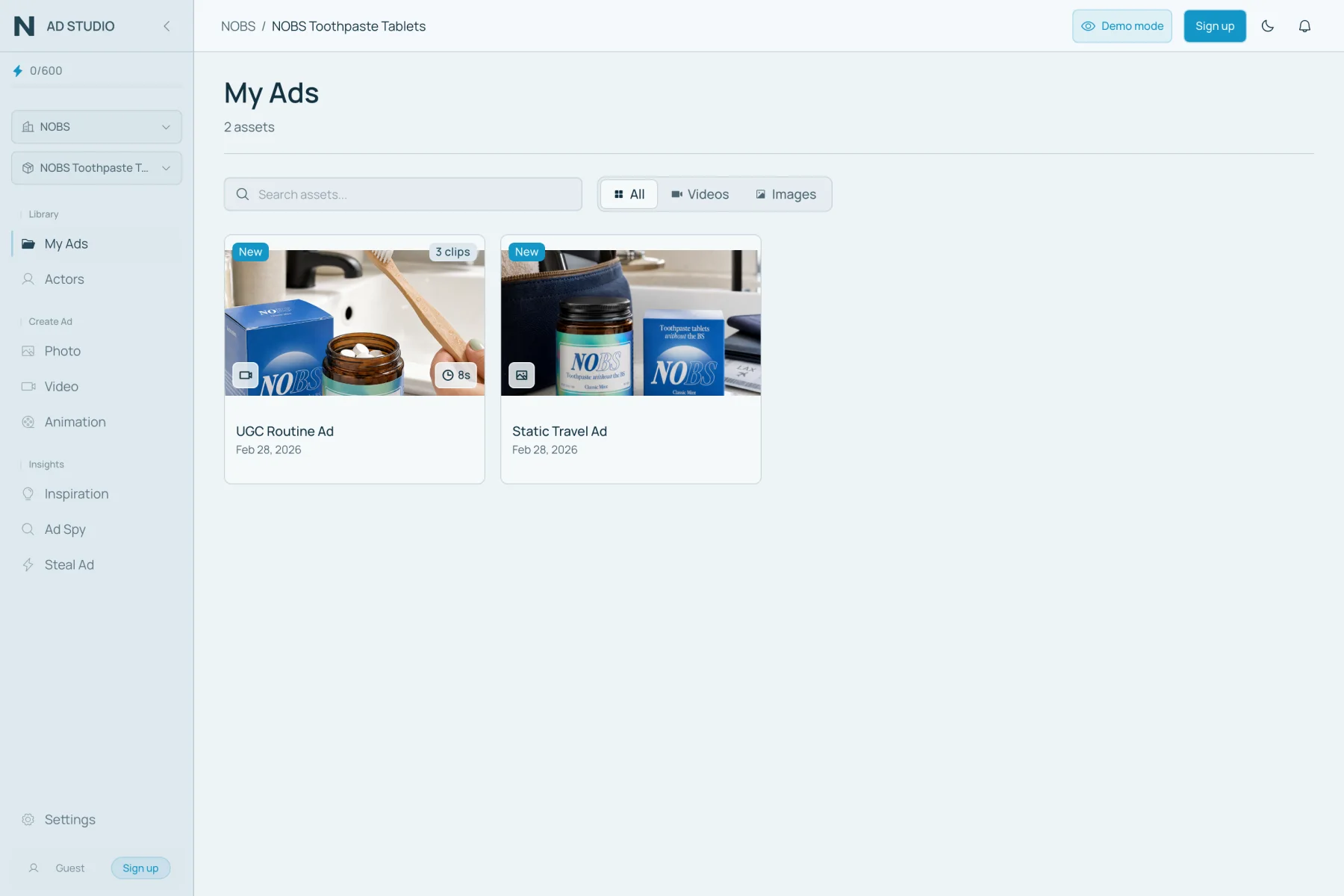
Filter by video or image, preview each asset, and export the winners when you are ready to launch.
Ready to make your first ad?
Start with a single reason worth testing, then send it to the studio that matches the ad you want to make. You can come back to this tour any time from Home.
New here? Add your product first under Settings › Brands & products so every ad is built around what you sell.